Why Pasted Images Go Through a Confirmation Card
Have you ever pasted in a screenshot, only to watch the folder fill up without knowing where the file was created or what it was named? mori asks once before writing an image to disk, and records what it is writing and where on a card.
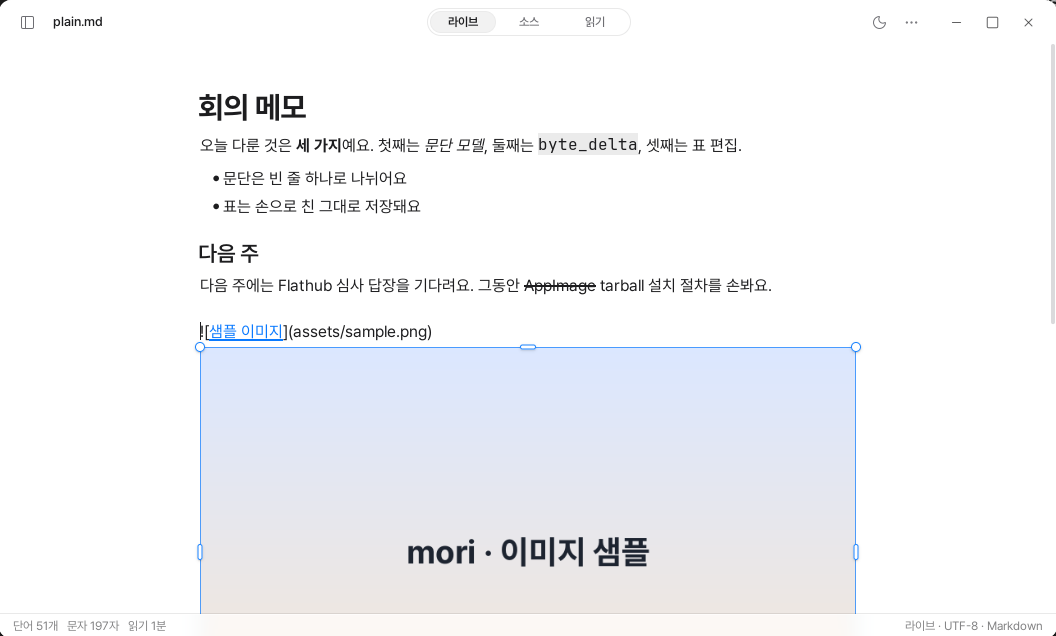
A Markdown document does not contain images. It only contains the paths to the images. The actual files are in a folder outside the document.
That means the moment you paste an image, the editor has important decisions to make: whether to create a file, where to put it, and what to name it. mori does not make these decisions behind the user’s back.
A file is created only when you click Save
When you paste an image from the clipboard, a confirmation card appears. The card first shows the relative path of the file that will be created.
assets/plain-20260907-181756.png
The file name includes the document name and the time it was pasted. This makes it easy to tell which document an image came from, and prevents multiple pasted images from overwriting one another. The default folder is assets, and you can change it in the settings.
When you click Save, mori atomically writes the PNG to that location and inserts a link at the caret. If you cancel, no file is created.
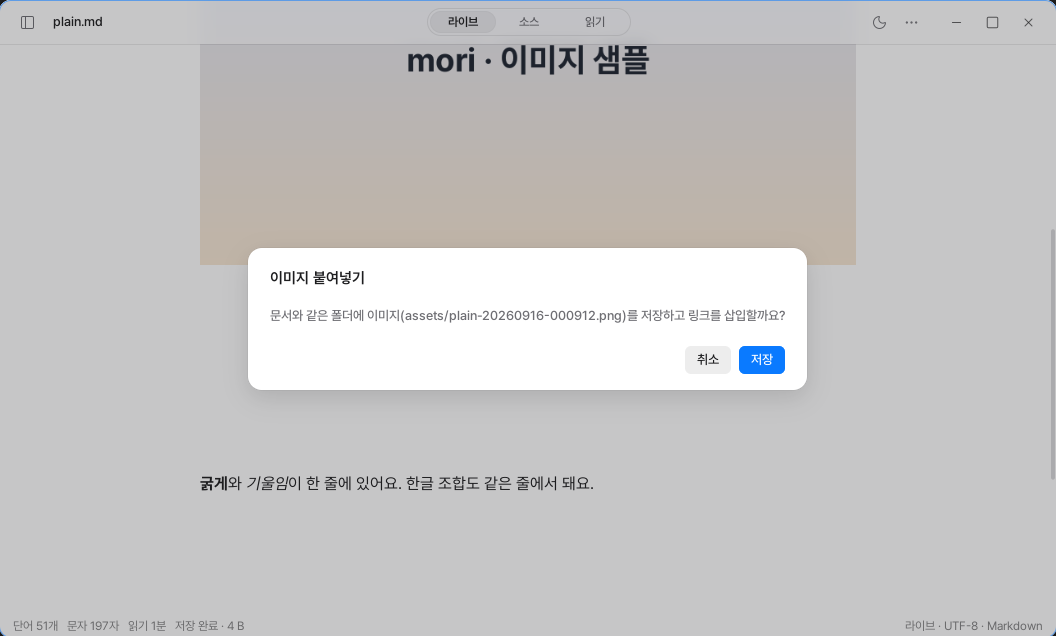
assets/plain-20260907-181756.png, is displayed, and the file is created only after you click Save.If the document has not been saved yet, mori asks you to save it first. This is because the document’s location must be known before the image’s relative path can be determined.
When you drag an image file into the window, mori does not copy it. If the file is inside the document folder, it inserts a relative path; if it is outside, it inserts an absolute path. The editor does not arbitrarily change the location of a file the user has already placed.
Resizing is recorded in the document
When you select an image in live mode, a border and eight handles appear. Dragging a corner preserves the aspect ratio, while dragging an edge changes the size in only one direction. While you drag, the expected dimensions are shown in pixels.
When you release the handle, the dimensions are recorded at the end of the alt text.
- If you changed only the width:
|300 - If you changed the width and height separately:
|300x200
This works the same way as Obsidian, so the image appears at the same size there as well. Resizing is included in the edit history, so you can undo it with a single undo operation.
This syntax is not part of the CommonMark standard. In viewers that do not support it, |300 may appear as part of the alt text. Even so, we chose not to hide the size information in a separate file. We believe the document’s state should remain in a single .md file.
Unused images are not deleted immediately
If you delete or undo the link to a pasted image, only the PNG file may remain. When this happens, mori asks once whether you want to move the file to the trash. It does not delete the file without permission, and it does not ask again about the same file.
This applies only to files that mori created during the current editing session. It does not touch images that were already in the folder or files added directly by the user. Nor does it search through folders for unused images.
We clean up only the files we created, and only with the user’s consent.
The original is not modified
mori does not upload images anywhere. It also does not provide cropping, rotation, or adjustment features.
Only when rendering an image on the screen does mori decode it at a reduced size so that neither side exceeds 2048 px. It keeps up to 64 MB of decoded pixels and discards the oldest ones first. This prevents memory usage from continuing to grow even in documents with many photos.
The original file is not modified during this process either.
There is only one occasion when mori creates a new file in the document folder: when the user pastes an image and clicks Save. The only content it writes to the document is text entered directly by the user, image links, and image dimensions. We disclose this list in the changelog for every release.
An image is a file outside the document. Whether to create it, keep it, or remove it should be decided by the user, not the editor.